Save and reuse an AutoCAD batch setup
Save BatchDraft drawing paths, AutoLISP load order, CAD commands, host selection and output choices, then safely reload them for repeatable DWG work.
For Trial 0.2.0 · UpdatedA saved Batch setup keeps the configuration of a run so you can repeat it without rebuilding the drawing list and command sequence. It is useful once you have checked that a small batch produces the intended result.
What a setup contains
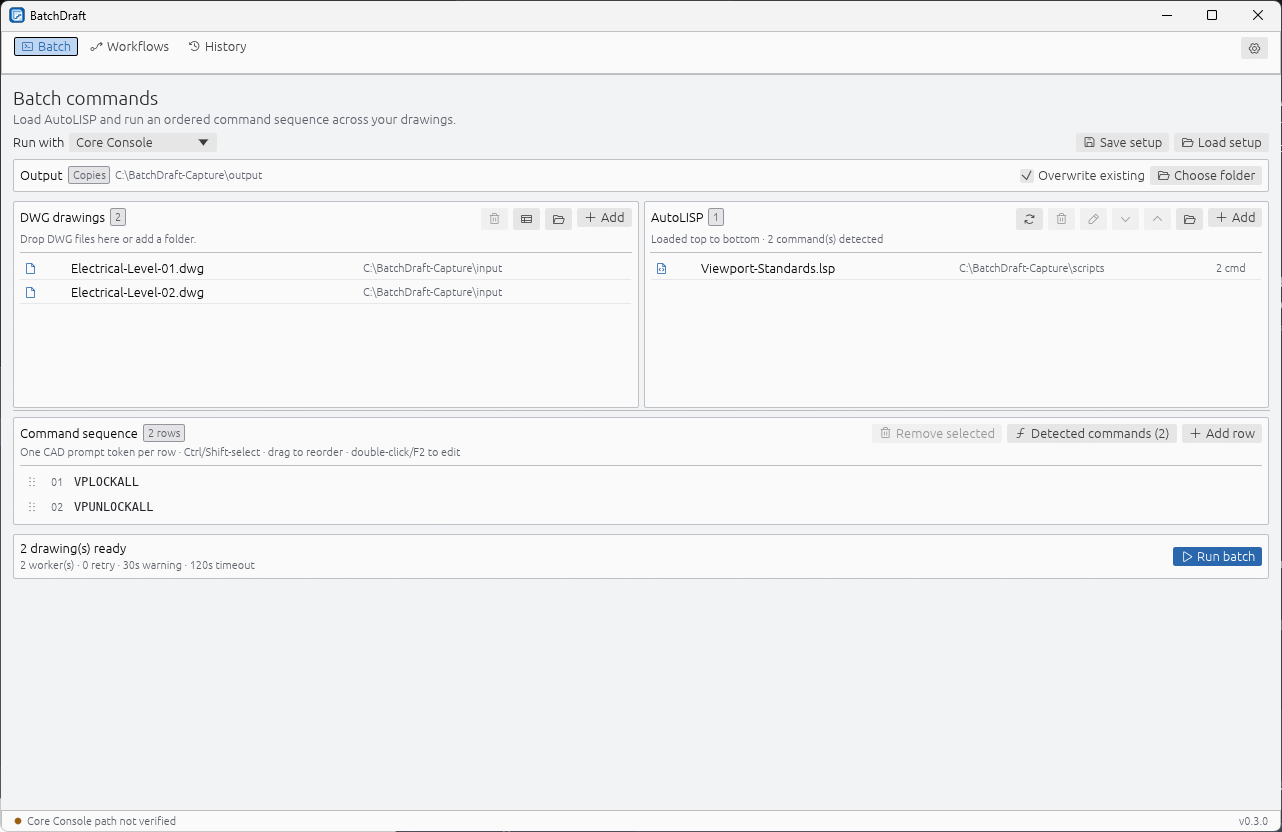
Save setup writes a portable JSON file containing the ordered drawing paths, AutoLISP paths, command rows, selected engine, output choices and applicable overrides.
Those are file paths and configuration. Do not treat a setup as an archive of the drawings or LISP source it references. Keep the referenced files available and review their contents if they have changed since the setup was saved.
Save a known configuration
- Build a batch and check its output on representative disposable or backed-up drawings.
- Review the drawing selection, LISP load order and command sequence.
- Confirm the host, output folder, copy or in-place choice, and overwrite behavior.
- Choose Save setup or press Ctrl+S and give the setup a descriptive name.
Use names that help your team understand the intended job and drawing set. A saved setup may contain internal drawing paths, so review it before sharing it outside your organisation.
Load and review before running
Choose Load setup or press Ctrl+O. BatchDraft validates the selected setup before replacing the editor.
Before you run it again, check that the referenced DWGs and AutoLISP files still exist, the intended CAD application is selected, and the destination is correct. Recheck overwrite behavior, especially if previous outputs are already present. The ten-drawing trial limit still applies to loaded setups.
When moving a setup to another workstation, confirm all paths and the installed runtime again. A portable configuration file does not guarantee that another machine has the same files or CAD installation.
Saved setups and workflows are different
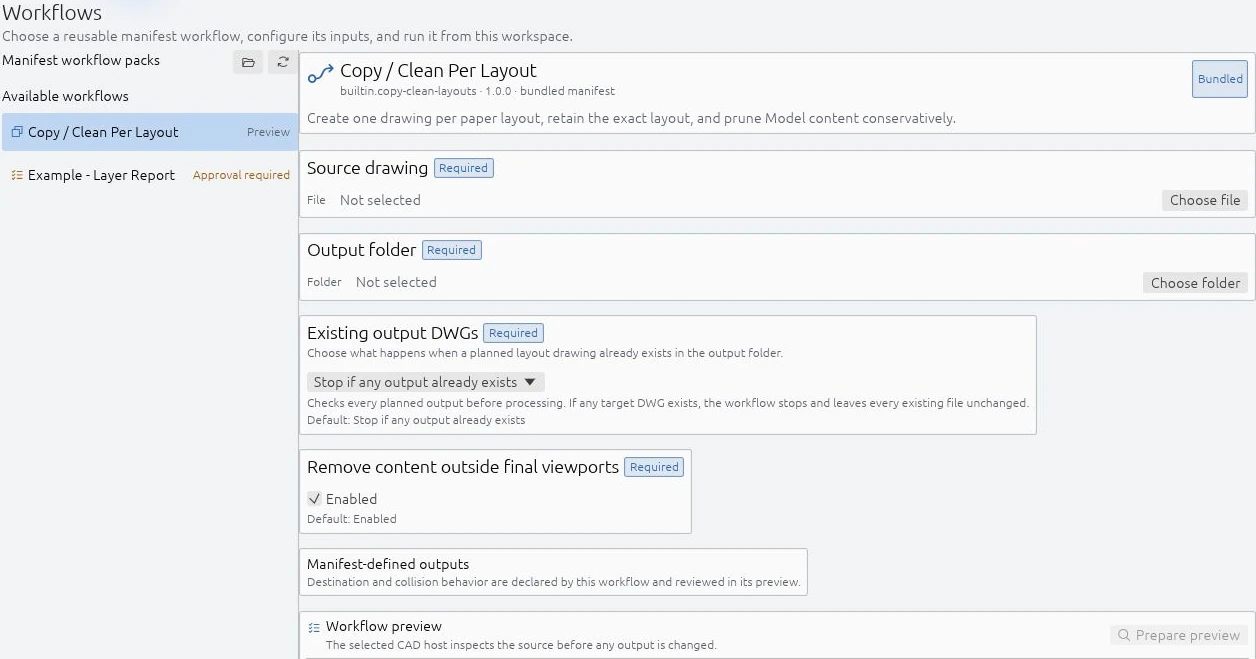
Batch setups preserve a drawing list, LISP files and command sequence. Workflows are packaged drawing processes presented as guided forms, with their own inputs and output preview.
The bundled Copy / Clean Per Layout workflow creates output DWGs for paper layouts and is intended for AutoCAD Core Console. External workflow packs can contain executable AutoLISP and require approval. Changed pack content requires approval again; the approval is not a sandbox.
Choose a setup when you want to repeat your configured Batch sequence. Use a workflow when its declared inputs, effects and output plan match the task you need to perform.
Review each new run
Reloading a setup does not remove the need to inspect output. Check the result for every drawing in History and open the resulting DWGs. Source files, routines and CAD environments can change between runs.
For unexpected results, start with troubleshooting. For command-row and load-order details, return to running AutoLISP.
Use the included configurable tools
Trial 0.2.0 includes the Command library. Follow the dedicated guides for bulk drawing updates and plotting, collecting and combining PDFs. They explain the configuration forms, report-only checks, editable steps and where to find the results.
This guide covers Trial 0.2.0: 30 days from first launch, up to ten drawings per preview or run.