Configure BatchDraft settings
Choose a CAD host, set output defaults, understand parallel workers, retries and timeouts, and manage retained logs and interface preferences in BatchDraft.
For Trial 0.2.0 · UpdatedOpen Settings with the gear button at the top right of BatchDraft. Settings establish the CAD application, execution limits and output defaults used by Batch and workflows. This guide covers the controls in the published 0.2.0 trial.
For a first check, use AutoCAD / Headless, Copies, and one worker with a small drawing set. Review the output before increasing concurrency. The trial’s ten-drawing limit is separate from the worker count.
Find a setting
Start with All settings to scroll through every section on one page. Select CAD, Execution & output, LSP library, Appearance, or Advanced to filter the page. Return to All settings to restore the full view. The save, discard and restore controls stay below the scrolling content.
Plotting and bulk-edit choices belong in Batch → Add tool, or in the form opened by double-clicking an existing configured step. They are not global settings; different steps can use different options.
Select your CAD application
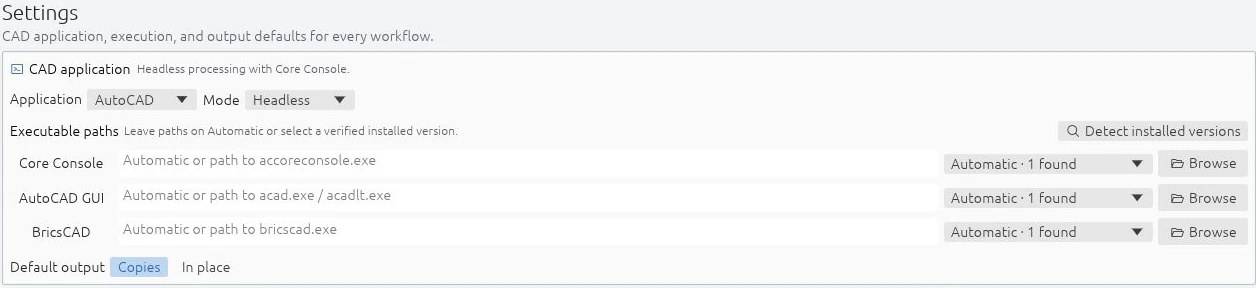
Choose Application first, then Mode. The executable must belong to the selected CAD installation.
| Application and mode | Executable | Release scope |
|---|---|---|
| AutoCAD / Headless | accoreconsole.exe |
Primary verified execution path. Installed evidence covers AutoCAD LT 2026 Core Console. |
| AutoCAD / Windowed | acad.exe or acadlt.exe |
Experimental desktop execution. |
| BricsCAD / Headless | bricscad.exe |
Background Automation mode, with focused BricsCAD V26 evidence. |
| BricsCAD / Windowed | bricscad.exe |
Visible desktop mode, with focused BricsCAD V26 evidence. |
Use Detect installed versions and select the installation you intend to run. Use Browse if detection does not find it. AutoCAD Core Console and windowed AutoCAD keep separate executable preferences; BricsCAD uses its own executable selection.
The application and mode cannot change during an active run. BatchDraft does not silently fall back to another CAD application after a failure. See Core Console setup for headless limitations and runtime checks.
Choose the default output mode
Copies writes results to an output folder and preserves the original drawings. A retry starts with a fresh staging copy of the source. Review the destination and overwrite choice on the Batch page before running.
In place works on the source drawing itself. A retry reopens that same path. Use this mode only when changing the original is intended and you have suitable independent backups; a failed command can leave partial changes.
These are defaults. A workflow’s declared output behavior can take precedence, and a saved Batch setup can carry its own output choices. Always check the visible output selection after loading a setup.
Set workers, retries and timeouts
| Setting | Default | What it controls |
|---|---|---|
| Parallel workers | 1 | Drawings processed at the same time. Core Console accepts 1–64; higher values use more CPU, RAM, disk I/O and CAD processes. |
| Maximum retries | 1 | Extra eligible attempts after the first attempt for each drawing. The range is 0–20. Only failures classified as retryable receive them. |
| No-progress warning | 30 seconds | How long without a structured progress event before BatchDraft warns about a possible stall. It does not stop the process. |
| Hard timeout | 120 seconds | Maximum duration of one CAD attempt. An attempt reaching the limit is stopped; an eligible failure may then retry. |
In Trial 0.2.0, headless AutoCAD and BricsCAD use the configured worker count. Windowed modes use one worker while retaining your saved headless preference. This engine capability is not verification of every bundled utility on BricsCAD.
The no-progress warning must be positive and shorter than the hard timeout. A long CAD operation can produce few structured events, so a warning alone does not prove it is stuck. Check the recent activity and retained log before changing the limits.
For example, one retry allows up to two eligible attempts for a drawing. The hard timeout applies to each attempt, not the whole batch. Raising a timeout or retry count will not fix a command that expects an unanswered prompt or an unavailable desktop dialog.

Understand AutoLISP and CAD policy
Expand Advanced · security, AutoLISP and storage to see these controls.
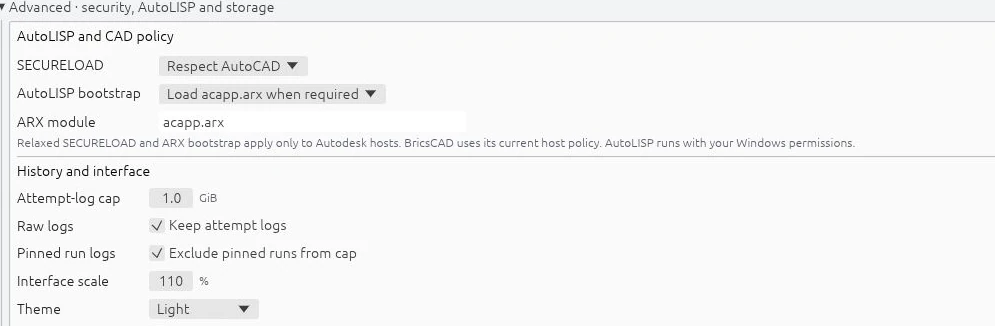
- SECURELOAD: keep Respect AutoCAD for normal use. The alternative relaxes policy only inside a verified runner-owned isolated Core Console profile. It does not sandbox AutoLISP; scripts still run with your Windows permissions. Windowed AutoCAD and BricsCAD respect their host policy.
- AutoLISP bootstrap: the default is Load acapp.arx when required. Always and Never are available for a specific runtime or routine that needs a different loading behavior. Change this only when you understand that dependency.
- ARX module: normally
acapp.arx. An installation-specific module path may be needed for an unusual setup. Autodesk ARX bootstrap loading is disabled for BricsCAD because those modules are not compatible.
If a script is blocked, first review its source and trusted location. See blocked AutoLISP troubleshooting before changing policy.
Manage history and retained logs
Attempt-log cap limits retained raw diagnostic files. Its default is 1 GiB. Cleanup removes the oldest eligible files; this cap does not delete the structured run records and issues in the local history database.
Keep attempt logs is enabled by default. These per-attempt CAD output and event files are useful when diagnosing a failed command. If they are not retained, detailed raw output may be unavailable later even though the structured run record remains.
Exclude pinned runs from cap is enabled by default. Pinned-run logs then sit outside the cap, so the configured number is not a ceiling on total disk use. When disabled, pinned and unpinned logs share the cap and older pinned logs can also be removed. Pin state and structured run records remain.
Open data folder opens the local application data location containing settings, workflows, approvals, history, logs and attempt workspaces. Review files for drawing details and personal paths before sharing anything with support.
Set up your LSP library and offline help
Under LSP library, choose your script folder and save settings. My LSP files in the Command library searches that folder and its subfolders. Leaving the path blank uses the default library below application data. Changing it does not move scripts or repair file paths in saved setups.
Bundled tools are supplied by the application and remain available separately. Use Open guides in Help, or the book icon in the top bar, to open the included HTML guides without an internet connection. External reference links still need internet access.
Adjust the interface
Interface scale ranges from 50% to 300%, with a default of 100%. Theme offers System, Light and Dark; System follows Windows. Appearance changes preview immediately. Save them if you want the choice to persist.
Save, discard or restore defaults
- Save settings validates and persists changes, then enforces the retained attempt-log cap. It is enabled when there are unsaved changes and validation passes.
- Discard changes reloads the last saved values, including appearance.
- Restore defaults replaces values in memory and clears executable overrides. Choose Save settings to persist the reset, or Discard changes to return to the saved configuration.
If Settings need attention appears, fix the stated validation problem before saving. Recheck the CAD installation, output mode and execution limits after a reset, then try a small batch using Getting started.
This guide covers Trial 0.2.0: 30 days from first launch, up to ten drawings per preview or run.