Run a LISP routine on multiple AutoCAD drawings
Use BatchDraft to load AutoLISP files, repeat command sequences across DWGs, protect source drawings with Copies mode, and review every result.
For Trial 0.2.0 · UpdatedIn BatchDraft, you add the drawings once, load your AutoLISP files in order, and define the commands to run on each drawing. AutoCAD Core Console performs the work, while BatchDraft tracks progress and retains the result for each DWG.
Check the routine before batching
Start with a reviewed routine and a disposable drawing. A function that works in desktop AutoCAD may still depend on a dialog, user selection, or desktop-only document automation. Discovering a command in a LISP file does not prove that it can run unattended in Core Console.
Make sure the routine can finish without unexpected interaction in your selected runtime. If it needs extra files or supporting LISP functions, make those dependencies available too. See Core Console limitations.
Add drawings and AutoLISP files
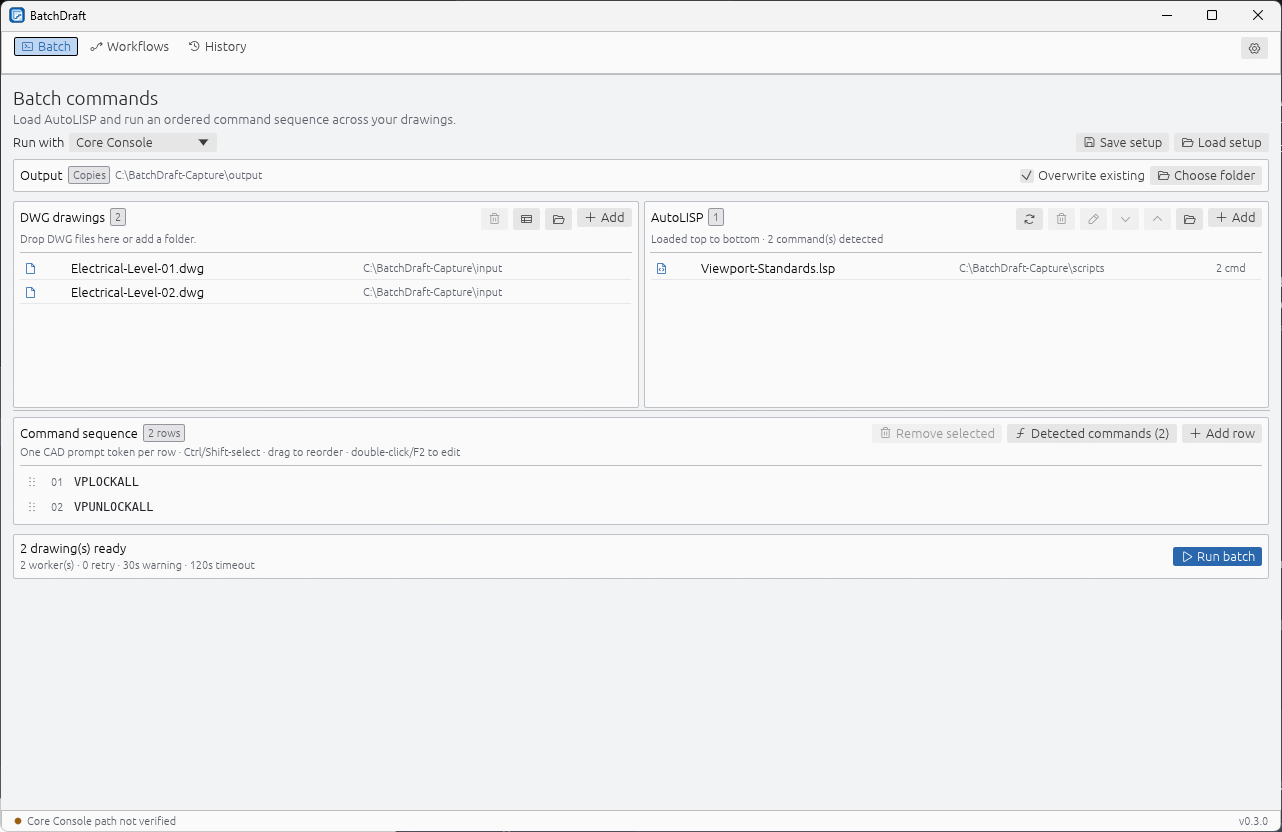
- On Batch, use Add drawings in the drawing list, drop DWG files onto the application, or import a folder. Folder import is recursive and duplicate paths are ignored.
- Check the drawing list before running. The public trial accepts at most ten drawings per preview or run.
- Add the
.lspfiles in the order they should load. Put supporting definitions before the routine that depends on them. - Review the paths and source files. AutoLISP runs with your Windows permissions; BatchDraft is not a sandbox for untrusted code.
Adding a LISP file makes it part of the load sequence. Calling one of its commands is a separate step.
Build the command sequence
BatchDraft discovers callable C: command definitions in loaded AutoLISP files. Use From scripts to add the command you want to run, or enter your command rows directly.
For manually entered sequences, each command row is one CAD prompt token. Configured library tools keep all their options in one row; double-click to reopen their form. Put a command on its own row, then add each response it needs on a following row. Use the literal <ENTER> row where the command expects a blank or default response. Double-click a row or press F2 to edit it.
Prefer command-line variants of CAD commands when a normal command opens a dialog. These often have a - prefix. The prompt sequence must match the actual command and CAD runtime; do not assume that a sequence tested in one host behaves identically in another.
Choose copies and run
Select Copies, choose the destination folder and review whether existing outputs may be replaced. Run a small set first, then inspect the actual output drawings before scaling up within the trial limit.
With AutoCAD Core Console, configurable workers can process several drawings concurrently. Begin with a conservative worker count for your machine and workload. Multiple workers do not make an interactive or incompatible routine safe to run unattended.
In place is a deliberate alternative that writes to your source drawings. Keep independent backups: a command can make partial changes before it fails, and an in-place run cannot promise rollback.
Review the result for every drawing
Check the progress panel for completed drawings, attempts, warnings and failures. Click its summary to expand or collapse details; the summary remains available after the run. While running, Stop run replaces Run batch. Cancelling keeps completed drawing results and history. In History, select a run, drawing or attempt to inspect its retained output.
- Readable logs preserve commands, prompts, AutoLISP output, warnings and errors while hiding validated runner plumbing.
- Raw logs retain the complete decoded stdout/stderr evidence.
- Open the output DWGs and confirm that the intended drawing changes occurred. Do not use a clean process exit as your only check.
When the sequence works, save the Batch setup. If a command stalls or an output is missing, use the troubleshooting guide.
Use the included configurable tools
Trial 0.2.0 includes the Command library. Follow the dedicated guides for bulk drawing updates and plotting, collecting and combining PDFs. They explain the configuration forms, report-only checks, editable steps and where to find the results.
This guide covers Trial 0.2.0: 30 days from first launch, up to ten drawings per preview or run.